

If you’re searching for the best ways to optimize pc for gaming, you’re likely tired of lag spikes, low frame rates, and performance drops that ruin the experience. Whether you’re diving into competitive multiplayer arenas or exploring massive open-world realms, smooth gameplay isn’t a luxury—it’s essential.
This guide is built to give you exactly what you’re looking for: clear, practical steps to boost performance, reduce input delay, and get the most out of your hardware. We break down system tweaks, graphics settings, and in-game adjustments that make a measurable difference—without unnecessary technical jargon.
To ensure accuracy, we’ve reviewed current hardware benchmarks, tested in-game performance settings across popular titles, and analyzed competitive player setups to highlight what truly works. By the end of this article, you’ll know how to unlock higher FPS, improve stability, and create a gaming setup that performs at its peak.
Unlock Your PC’s True Gaming Potential
Lag, stuttering, and low FPS (frames per second, the number of images your screen shows each second) can wreck an otherwise perfect match. When FPS drops, your inputs feel delayed and movement looks choppy—hardly ideal in competitive play.
This guide shows you how to optimize pc for gaming with a clear, practical roadmap. We’ll break down:
- Software optimizations like driver updates and background app control
- Hardware checks such as cooling, RAM usage, and storage speed
By identifying bottlenecks—components that slow everything down—you can unlock smoother, more responsive gameplay without buying a new machine today.
The Foundation: System-Level Tweaks for an Immediate FPS Boost
First and foremost, update your graphics drivers. This is the single most important step because NVIDIA and AMD regularly release driver updates optimized for the latest game launches, often delivering measurable FPS gains and stability fixes (NVIDIA and AMD release notes frequently cite performance improvements for new titles). On NVIDIA, open GeForce Experience and click “Drivers” to download the latest Game Ready Driver. On AMD, launch Radeon Software and check for updates under the “Home” tab. In short, newer drivers translate directly into smoother gameplay.
Next, optimize Windows Power Plan. Head to Control Panel > Power Options and select “High Performance” (or enable “Ultimate Performance” via advanced settings). This ensures your CPU isn’t throttled to save energy, which means steadier frame rates during intense scenes.
Meanwhile, enable Windows Game Mode in Settings > Gaming. Game Mode prioritizes system resources for your game and limits background updates—think of it as giving your GPU the main stage.
Finally, disable unnecessary startup programs. Open Task Manager > Startup and disable resource-heavy apps. Fewer background processes free up RAM and CPU cycles—exactly what you need to optimize pc for gaming (pro tip: reboot after changes to confirm improvements).
Decoding In-Game Graphics: What to Tweak for Maximum Performance
Let’s simplify what actually affects your frame rate (FPS, or frames per second—the number of images your GPU renders each second).
The Performance Killers
First, Resolution. This is the number of pixels on your screen. Native resolution means your monitor’s default pixel count (for example, 1920×1080 on a 1080p display). Running below native can boost FPS but may look blurry. Upscaling technologies render at a lower resolution, then intelligently stretch the image to look sharper. Cost vs. benefit? Native looks best but demands more power; upscaling offers major FPS gains with minor visual trade-offs.
Next, Shadow Quality. Shadows are surprisingly expensive because your system calculates light in real time. High shadows look cinematic; low shadows often look fine during fast gameplay (especially in competitive matches).
Then, Texture Quality. Textures are surface details—like brick patterns or armor scratches. Higher textures need more VRAM (video memory). If your GPU has limited VRAM, lowering textures prevents stutter with minimal visual loss.
Secondary Impact Settings
Anti-Aliasing smooths jagged edges. Turning it down improves FPS slightly.
Ambient Occlusion adds realistic shading in corners. It’s immersive—but subtle.
V-Sync matches FPS to monitor refresh rate to prevent screen tearing. However, it can add input lag (delay between input and on-screen action). Competitive players often disable it for faster response.
A Practical Tuning Methodology
Start with a Low preset. Set native resolution. Then gradually increase Texture Quality and Anisotropic Filtering until FPS stabilizes. Finally, adjust shadows. This step-by-step method helps you optimize pc for gaming without guesswork.
Advanced Tuning: Squeezing Every Last Frame Out
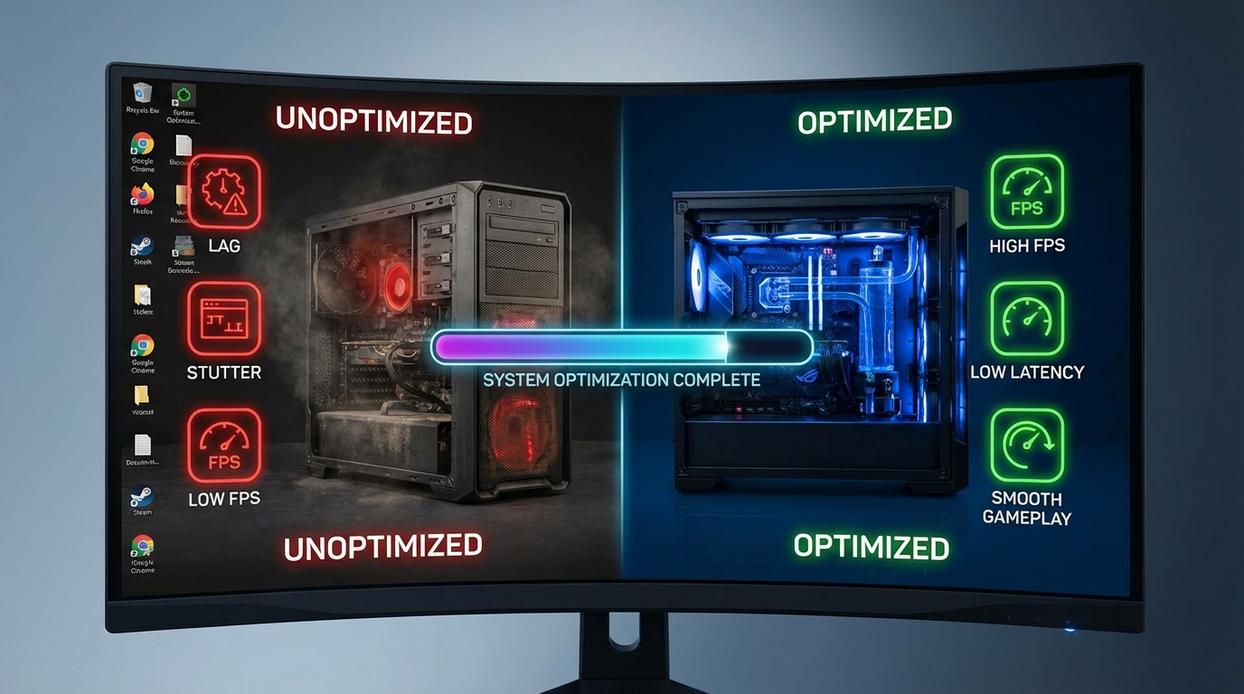
If you’ve already tweaked in-game settings and still want more performance, it’s time to dive deeper. This is where I think the real gains hide.
Leverage Your GPU Control Panel
Both NVIDIA Control Panel and AMD Radeon Software let you override game defaults. Features like Low Latency Mode (NVIDIA) or Anti-Lag (AMD) reduce input delay—the gap between your click and the on-screen action. In competitive shooters, that difference feels massive. I always set Texture Filtering Quality to Performance and enable Image Sharpening to claw back clarity.
Some players argue driver tweaks barely help. I disagree. When you’re chasing consistency, small 3–5% boosts add up.
A Word on Overclocking
Overclocking—pushing your GPU or CPU beyond factory speeds—can deliver serious gains. But it’s high risk, high reward. More heat, more power draw, more instability if done carelessly. Do your research and make sure cooling is solid (this isn’t the time for dusty fans).
Manage Background Processes
To truly optimize pc for gaming, close browsers, launchers, and overlays like Discord. They quietly eat RAM and CPU cycles. If you need a refresher on system-side adjustments, check out console graphics settings explained for smoother gameplay for deeper context.
Your Rig’s Bottleneck: Hardware Checks That Matter
Check Your RAM Configuration
Running RAM in dual-channel mode means using two matching sticks so your CPU can access memory twice as fast. Single-channel? You’re leaving performance on the table. Enable XMP (Intel) or DOCP (AMD) in your BIOS to unlock advertised speeds—this is a free uplift that can boost frame rates in memory-sensitive titles (yes, it’s basically a hidden turbo button). Some argue RAM speed barely matters, but benchmarks from TechPowerUp show measurable FPS gains in modern games.
The SSD vs. HDD Divide
An SSD loads assets dramatically faster than an HDD, cutting load times and reducing open-world stutter caused by asset streaming. If you want to optimize pc for gaming, this is foundational—not optional.
Keep It Cool
Overheating causes thermal throttling, where components slow down to prevent damage.
- Clean dust from fans
- Ensure clear airflow
- Reapply thermal paste if temps spike
(Pro tip: Monitor temps with software before upgrading hardware.)
From Lag to Lead: Maintaining Peak Gaming Performance
A smooth experience isn’t magic—it’s method. Lag (delayed response between your input and the game) and frame drops (sudden dips in visual smoothness) usually stem from mismatched settings or outdated drivers. When you optimize pc for gaming, you’re aligning software and hardware so they communicate efficiently.
To stay ahead:
- Update GPU drivers regularly
- Revisit in-game graphics settings after major patches
- Monitor background apps draining resources
Make these checks a habit before every big release. A finely tuned system doesn’t just run games—it gives you the competitive edge serious players feel instantly.
To dive deeper into enhancing your gaming experience and discover the latest trends in tech, check out our article on Uggworldtech News Undergrowthgames.
Level Up Your Gameplay Starting Today
You came here looking for real ways to enhance performance, sharpen your competitive edge, and eliminate the frustrating lag and frame drops holding you back. Now you understand how hardware tuning, in-game settings, system maintenance, and smart performance tweaks work together to create a smoother, more responsive experience.
The biggest pain point for most players isn’t skill — it’s inconsistency. Stutters during crucial fights, overheating during long sessions, and unstable FPS can ruin even your best strategies. When your system runs at its best, your reaction time, precision, and confidence improve instantly.
The next step is simple: take action. Apply these tweaks, update your drivers, clean up background processes, and fully optimize pc for gaming so your setup supports your skill instead of limiting it.
Thousands of competitive players rely on proven performance strategies to gain every possible edge. Don’t let avoidable technical issues cost you another match.
Start optimizing today, eliminate performance bottlenecks, and experience the smooth, competitive gameplay you’ve been aiming for.
 Content Strategist
Adamenicos Moller has opinions about 2876 multiplayer arena tactics. Informed ones, backed by real experience — but opinions nonetheless, and they doesn't try to disguise them as neutral observation. They thinks a lot of what gets written about 2876 Multiplayer Arena Tactics, Competitive Strategy Breakdowns, Digital Realms and Gameplay Basics is either too cautious to be useful or too confident to be credible, and they's work tends to sit deliberately in the space between those two failure modes.
Reading Adamenicos's pieces, you get the sense of someone who has thought about this stuff seriously and arrived at actual conclusions — not just collected a range of perspectives and declined to pick one. That can be uncomfortable when they lands on something you disagree with. It's also why the writing is worth engaging with. Adamenicos isn't interested in telling people what they want to hear. They is interested in telling them what they actually thinks, with enough reasoning behind it that you can push back if you want to. That kind of intellectual honesty is rarer than it should be.
What Adamenicos is best at is the moment when a familiar topic reveals something unexpected — when the conventional wisdom turns out to be slightly off, or when a small shift in framing changes everything. They finds those moments consistently, which is why they's work tends to generate real discussion rather than just passive agreement.
Content Strategist
Adamenicos Moller has opinions about 2876 multiplayer arena tactics. Informed ones, backed by real experience — but opinions nonetheless, and they doesn't try to disguise them as neutral observation. They thinks a lot of what gets written about 2876 Multiplayer Arena Tactics, Competitive Strategy Breakdowns, Digital Realms and Gameplay Basics is either too cautious to be useful or too confident to be credible, and they's work tends to sit deliberately in the space between those two failure modes.
Reading Adamenicos's pieces, you get the sense of someone who has thought about this stuff seriously and arrived at actual conclusions — not just collected a range of perspectives and declined to pick one. That can be uncomfortable when they lands on something you disagree with. It's also why the writing is worth engaging with. Adamenicos isn't interested in telling people what they want to hear. They is interested in telling them what they actually thinks, with enough reasoning behind it that you can push back if you want to. That kind of intellectual honesty is rarer than it should be.
What Adamenicos is best at is the moment when a familiar topic reveals something unexpected — when the conventional wisdom turns out to be slightly off, or when a small shift in framing changes everything. They finds those moments consistently, which is why they's work tends to generate real discussion rather than just passive agreement.